Marketing
Promotional content, offers, and announcements
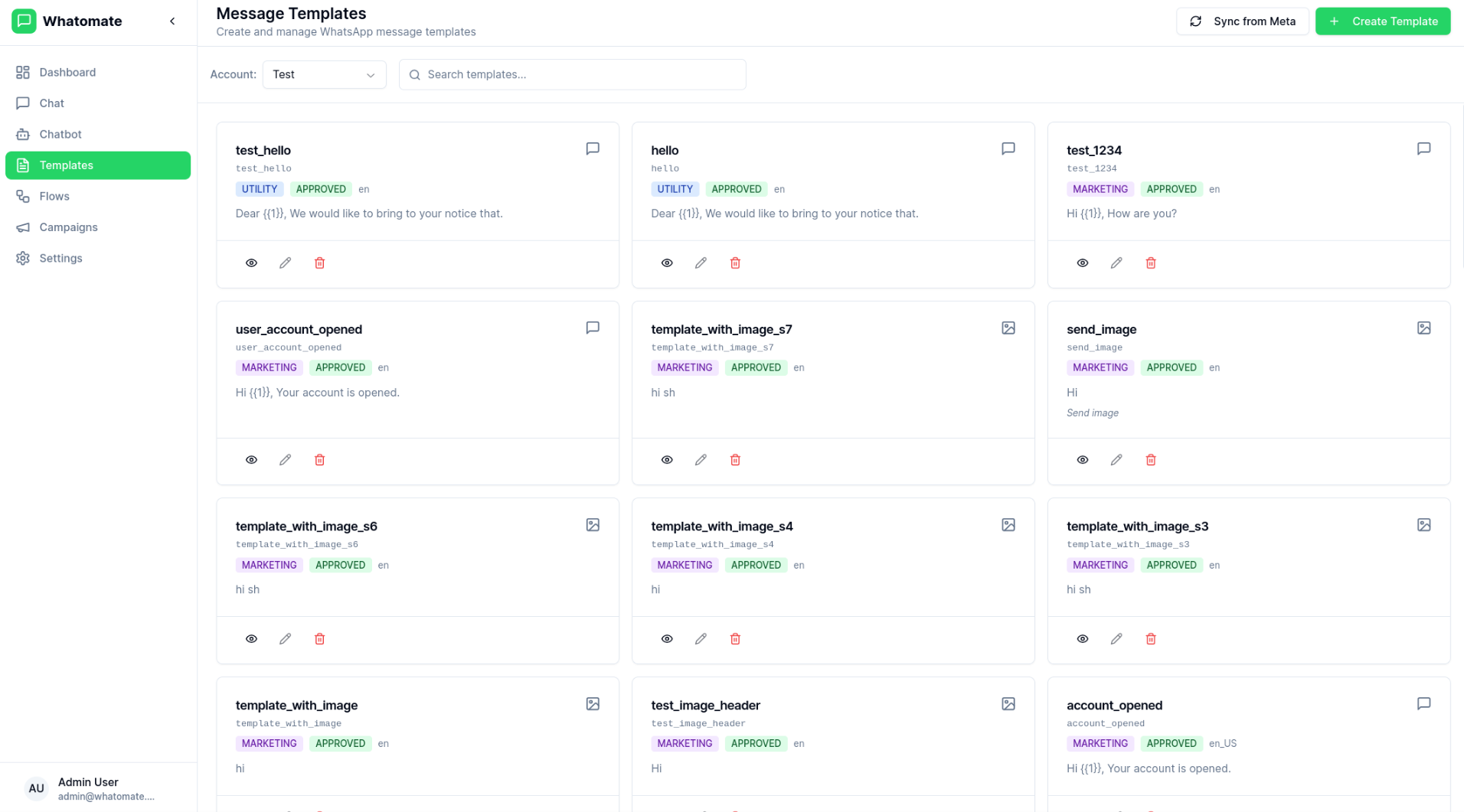
WhatsApp Message Templates are pre-approved message formats that allow businesses to send notifications and updates to customers. Whatomate makes it easy to manage, sync, and use templates across your organization.
The templates page displays all your synced templates from Meta’s WhatsApp Business API, including:
Click the Sync from Meta button to fetch the latest templates from your WhatsApp Business Account. This ensures your local templates are always up to date with what’s approved in Meta.
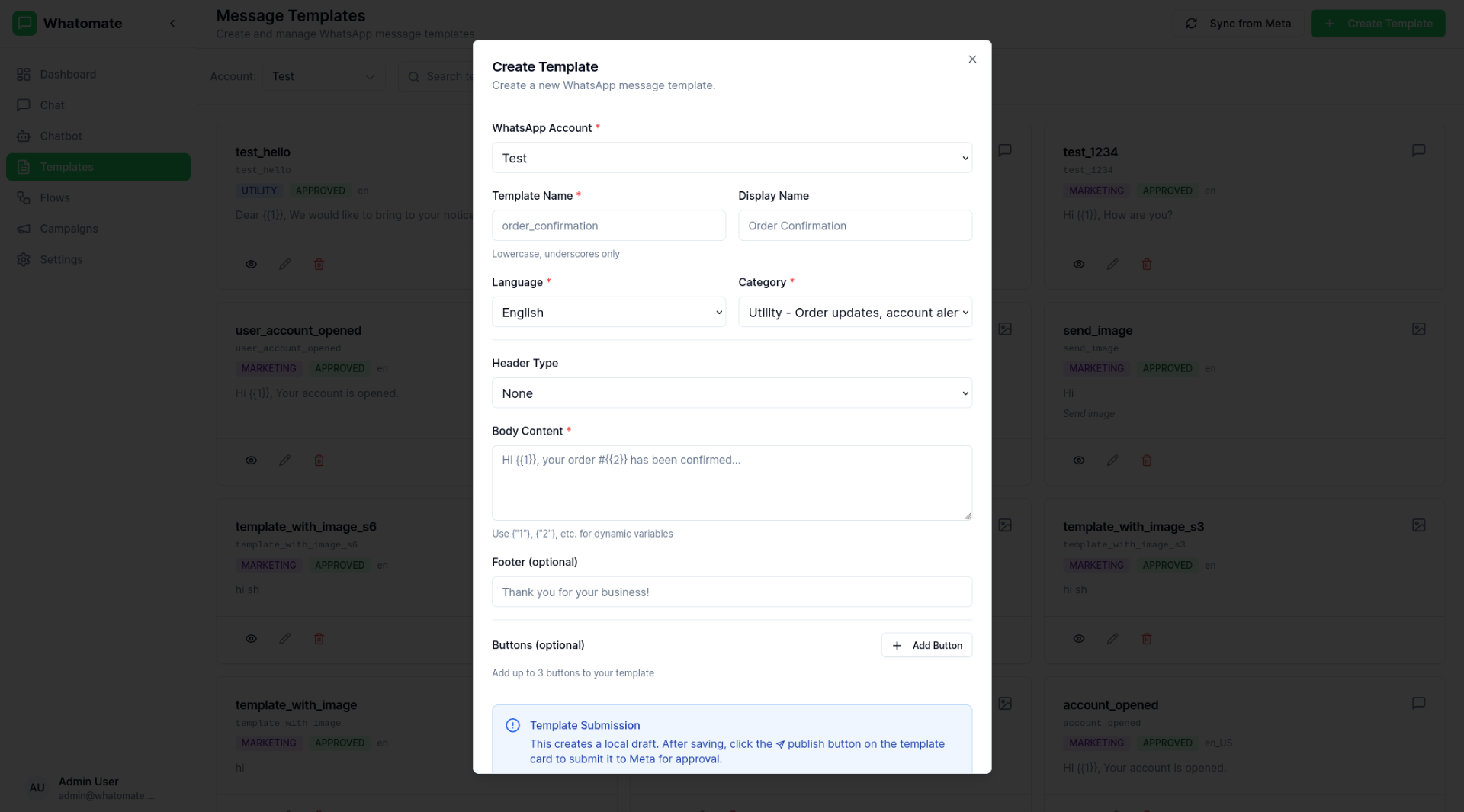
View and manage template details:
Templates support dynamic variables that are replaced with actual values when sending messages.
The traditional format uses numbered placeholders {{1}}, {{2}}, etc.:
Hello {{1}}, your order #{{2}} has been shipped!When sending, you provide values in order:
{{1}} → Customer Name{{2}} → Order IDTemplates also support named parameters for better readability and maintainability:
Hello {{customer_name}}, your order #{{order_id}} has been shipped!Named parameters make templates easier to understand and less error-prone when dealing with multiple variables. When creating templates with named parameters:
{{customer_name}}, {{order_id}}, {{delivery_date}}Marketing
Promotional content, offers, and announcements
Utility
Order updates, confirmations, and notifications
Authentication
One-time passwords and verification codes
| Status | Description |
|---|---|
| Approved | Template is ready to use |
| Pending | Awaiting Meta approval |
| Rejected | Template was rejected by Meta |
| Disabled | Template has been disabled |
Templates can be used in: